Getting started with Skiiip
Set up your first event, get the QR code in front of guests and run the night from the booth. About ten minutes from login to a working request page.
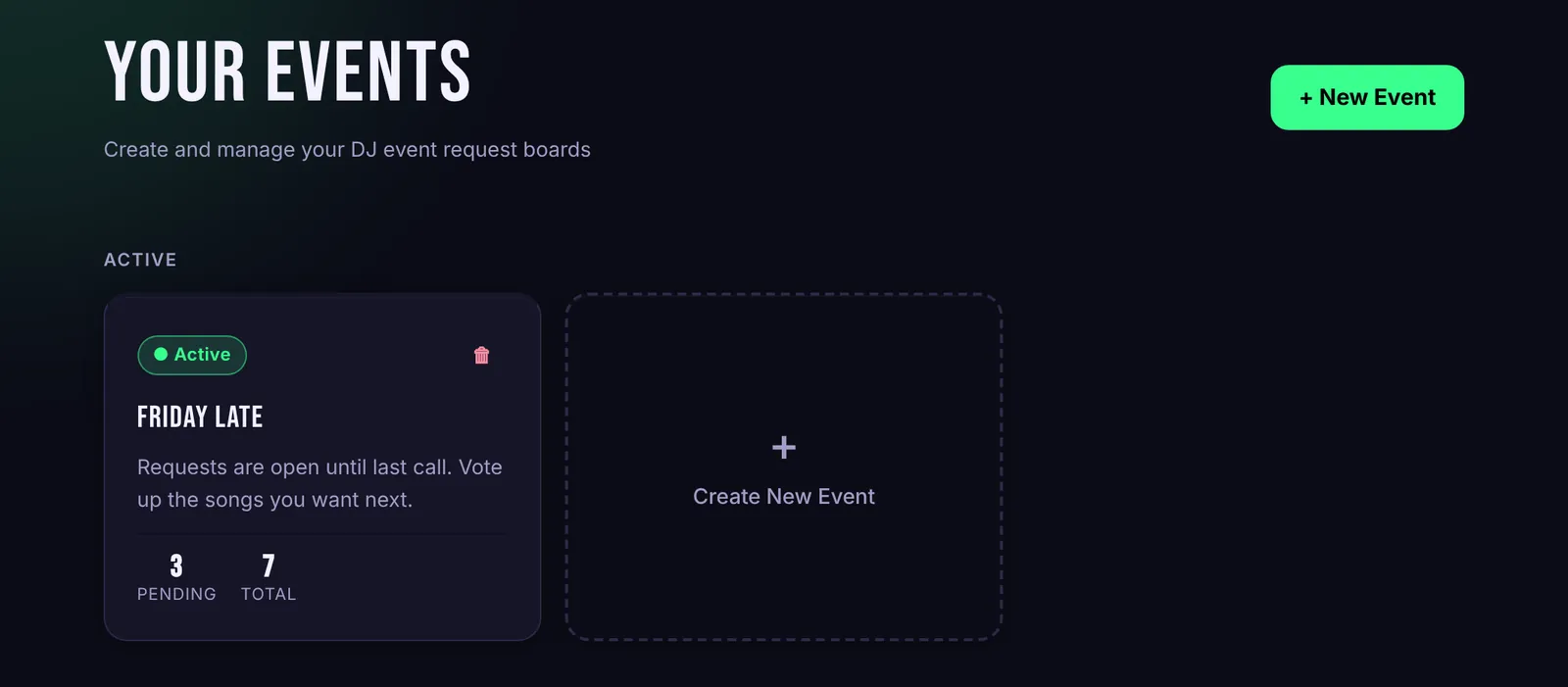
Welcome to Skiiip. This guide walks you through everything you need for your first night, in the order you'll do it. Each step links to a longer guide if you want the details.
1. Create an event
From your dashboard, press + New Event. Give it the name guests will see, like the venue or the night, and add an optional description such as when requests close.
Skiiip opens the event manager straight away. The request queue is on the left and your event settings are in the cards on the right.
2. Pick an event code
Find the Event Code card and set something short and easy to say, like fridaylate. Guests can type it on skiiip.net if they can't scan the QR code.
3. Get your QR code out
In the QR Code card, press Generate QR Code, then Download Poster for a ready-to-print poster or Download QR only for the bare code. Put it where guests will see it: on the booth, on tables, or on the venue screen.
Scan it with your own phone before the doors open. You should land on your event's request page. More on sharing your event.
4. Try a request yourself
On that request page, enter a name, a song and an artist, and send it. Then tap the vote box on another request. Both show up in your queue instantly. This is exactly what guests see. How guests request and vote.
5. Run the night from the booth
Back in the event manager, press Pop out to open Booth View: a small window that floats over your DJ software and updates live. Accept, mark played or ignore each request with one tap.
6. Optional extras
- Crowd controls: request limits, cooldowns, a last call countdown, a location gate and Leaderboard mode. Crowd controls
- Tips: add your own payment link so guests can tip you directly. Pro Tips
- Branding: your accent colour and logo on guest pages and the venue screen. Pro Custom branding
- Giveaways: a separate QR code for a prize draw with location-checked entries. Pro Giveaways
7. After the night
Press Close Event to stop new requests. Your queue, analytics and CSV export stay available. Song requests are deleted automatically 30 days after they were made.
Questions or something not working? Email [email protected]. We read every message during the beta.