Custom branding Pro
Your accent colour and logo on the guest pages and venue screen, including video logos with the background removed.
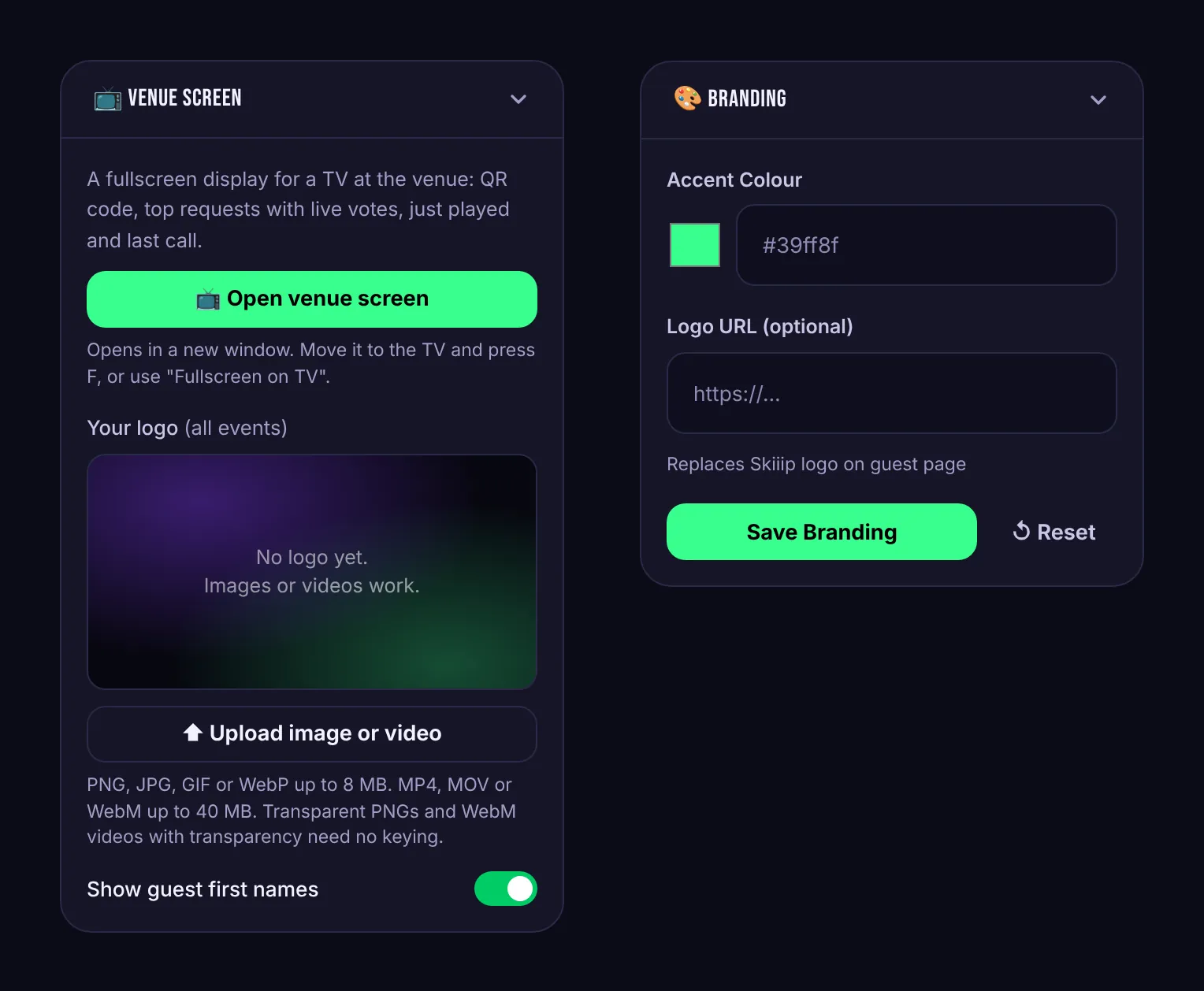
Branding makes Skiiip look like your night instead of ours. There are two places to set it.
Accent colour and guest page logo
In the Branding card of the event manager:
- Accent Colour changes the highlight colour on that event's guest pages, giveaway pages and venue screen. Any colour works: Skiiip adjusts the text on top of it so it stays readable.
- Logo URL replaces the Skiiip logo at the top of the guest page with your own image. Paste the full
https://address of the image.
Press Save Branding. Reset goes back to the Skiiip defaults. These settings are per event, so a residency and a wedding can each look different.
Venue screen logo
In the Venue Screen card, press Upload image or video. This logo shows on the venue screen for all of your events.
- Images: PNG, JPG, GIF or WebP, up to 8 MB.
- Videos: MP4, MOV or WebM, up to 40 MB. Animated logos loop on the screen.
- Logo size sets small, medium or large.
Removing a video background
Most logo animations come on a solid background. Under Remove background, pick the one your video uses:
- Black background or Green screen or Blue screen
- Custom colour, then press Auto-detect to pick the colour from the video's corners
Fine-tune with Strength, Edge softness and Colour spill cleanup until the edges look clean on the preview. Transparent PNGs and WebM videos with transparency need no keying at all.