The venue screen
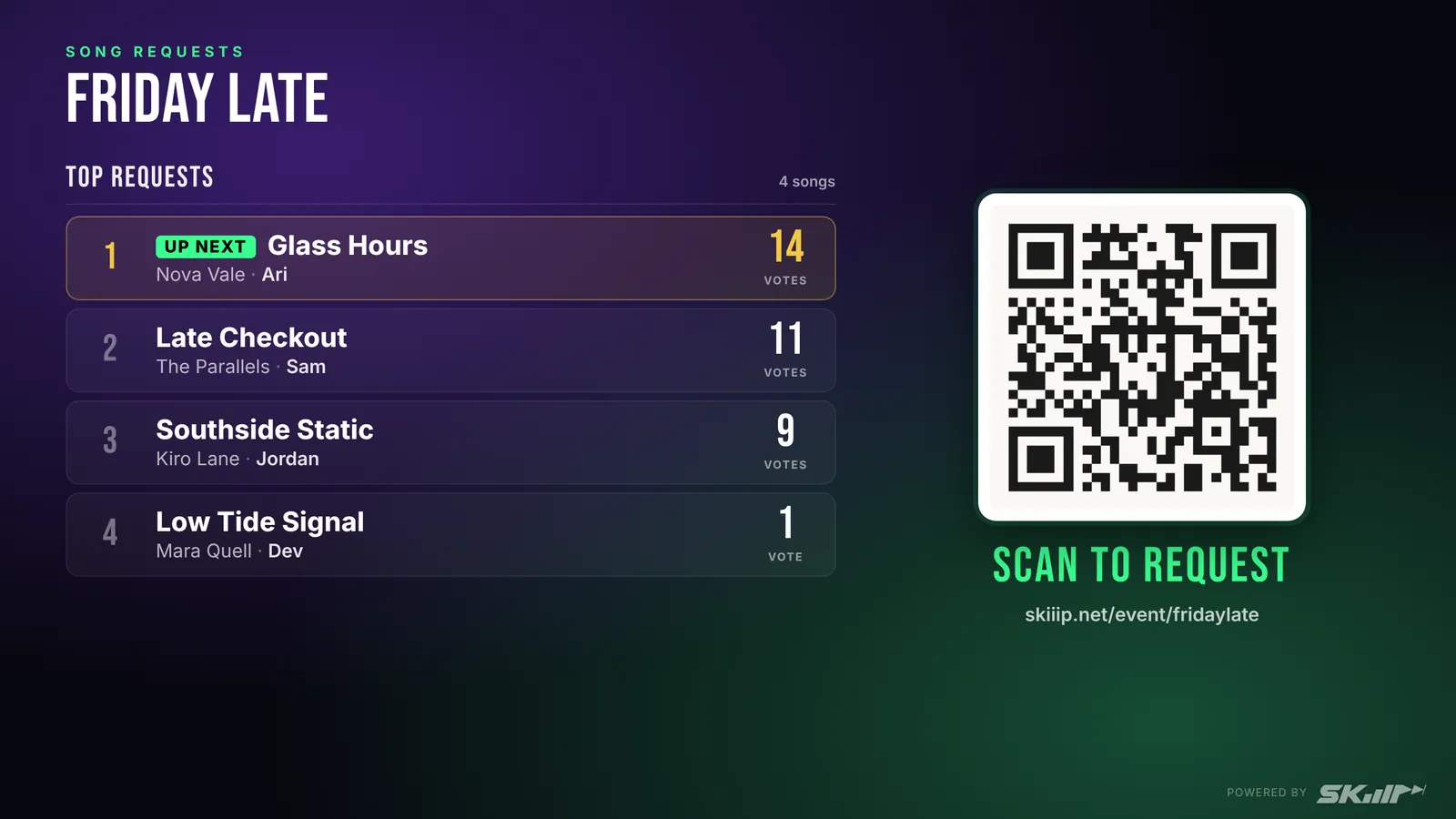
Put the live queue and your QR code on a TV. Top requests with live votes, what just played and last call, all updating on their own.
The venue screen turns any TV into a live request board. Guests see what the room is asking for, and the QR code right next to it tells them how to join in.
Open it
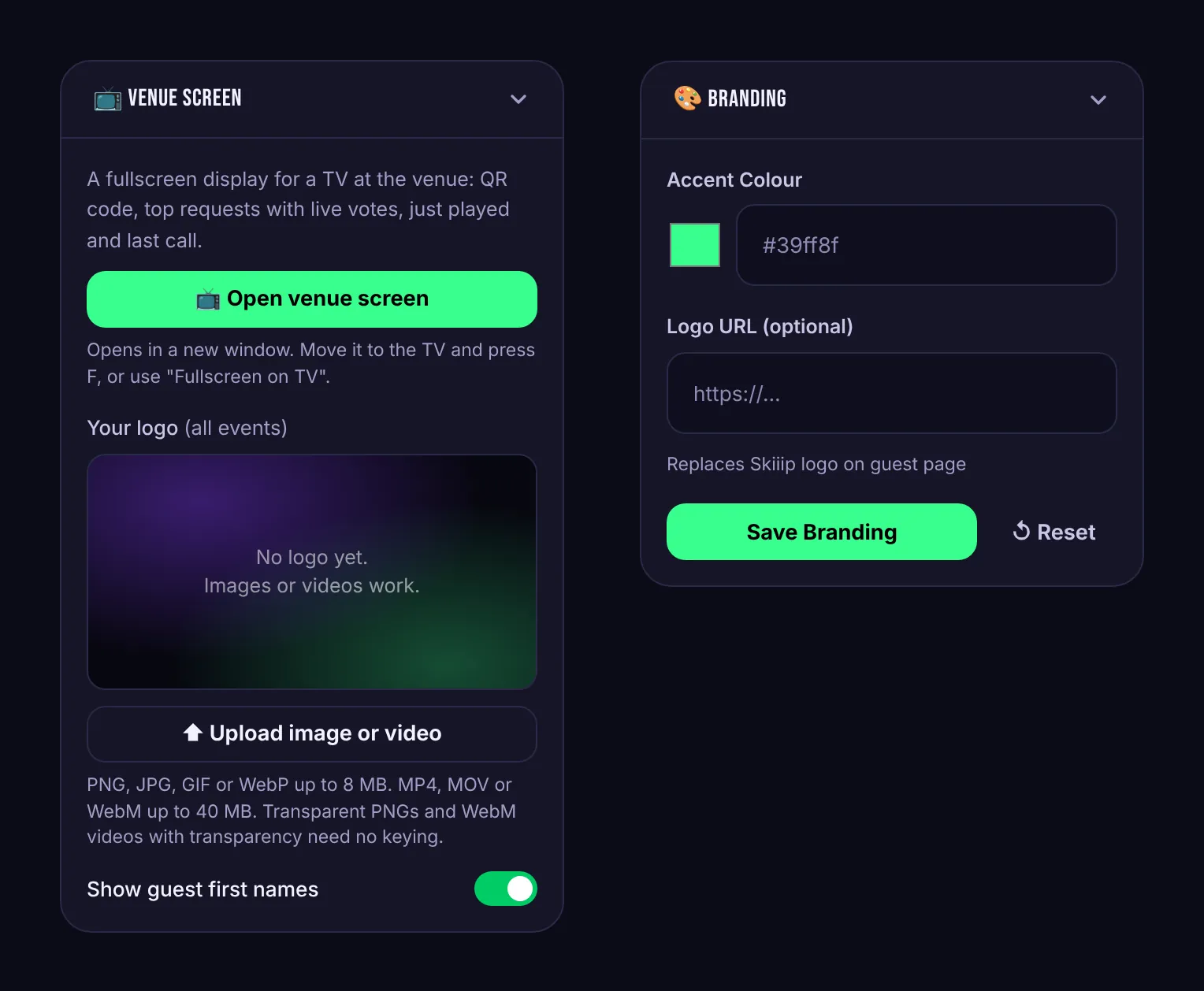
In the event manager, press Open venue screen in the Venue Screen card. It opens in a new window. Drag that window to the TV (or a laptop connected to it) and:
- press F to go fullscreen, or
- press Fullscreen on TV, which appears when your computer can see a second display.
The buttons and the mouse pointer hide themselves after a few seconds without movement.
What it shows
- Top requests with live vote counts. Rows move as votes come in.
- Just played, the last song you marked played.
- Last call, with a countdown, when you've set one. Crowd controls
- A Requests closed label over the QR code once you close the event.
It works in landscape and portrait, so a TV mounted sideways is fine.
Settings
In the Venue Screen card:
- Show guest first names shows who requested each song. Turn it off for a more anonymous screen.
- Your logo Pro puts your logo on the screen, for all of your events. Images or videos work. See Custom branding for video logos and background removal.
The screen also uses your event's accent colour from Custom branding.