Running the request queue
Accept, play or ignore requests, add private notes, search, and close the event when the night is done.
The event manager is your full control panel. The request queue on the left updates live as guests request and vote, so there's nothing to refresh.
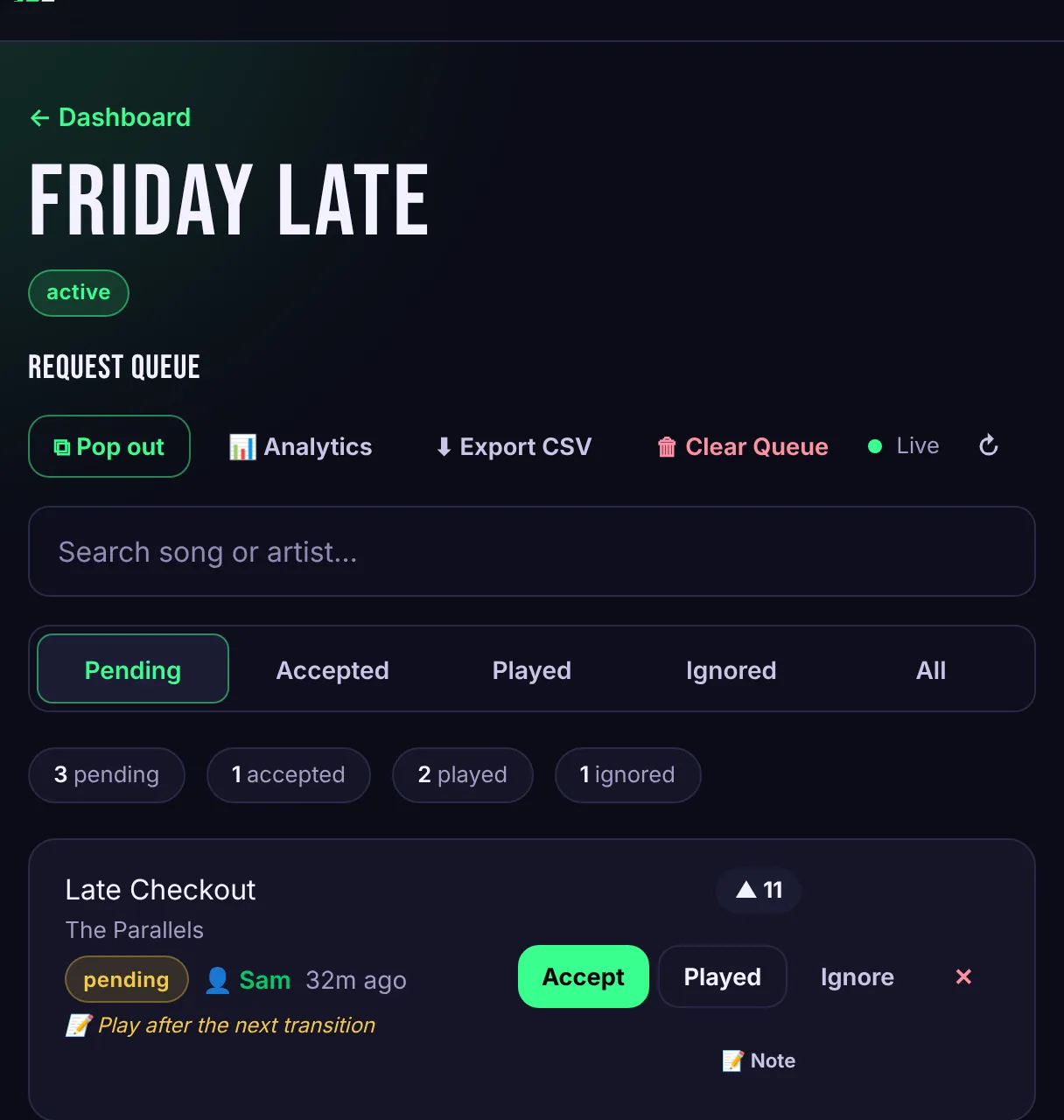
The four statuses
Every request is in one of four tabs:
- Pending: new requests waiting for you. Sorted by votes, so the most wanted songs are on top.
- Accepted: songs you plan to play. Guests see an Accepted label on them.
- Played: songs you've played. They leave the guest list and show as "Just played" on the venue screen.
- Ignored: songs you're skipping. They quietly leave the guest list. Guests aren't told.
Use Accept, Played and Ignore on each request to move it along. The ✕ button deletes a request completely.
Notes
Press Note on a request to add a private reminder, like "play after the next transition". Notes show in your queue and in Booth View, never to guests.
Search and the live indicator
The search box filters by song or artist across the current tab. The Live dot next to the toolbar shows your connection to Skiiip. If it drops, the queue catches up automatically when the connection returns.
Closing up
- Close Event stops new requests. Guests see that requests are closed. Press Reopen Event to start again.
- Clear Queue deletes every request for the event. Use it to reset between nights if you reuse an event.
- Delete Event removes the event and all of its requests for good.
For a smaller view that sits over your DJ software, use Booth View. For numbers after the night, see Analytics and exports.